Services
In CargoPilot, services allow administrators to configure additional options that can be offered to customers during the quote and booking process. These services help customize shipments by adding extra logistics features, such as customs documents, EUR1 documents, tailgate services, and other custom surcharges.
Configuring Services in the Admin Panel
Services can be fully managed within the Admin Panel, where users can:
- Create new services.
- Define multiple (and stackable) pricing structures, e.g. min, base, rate, and max.
- Sort services by assigning an order, controlling how they appear in the
request a quoteinterface.
Service Pricing and Rate Types
Each service can be assigned multiple rate structures, allowing for flexible pricing models. The following pricing options are available:
- Minimum rate – The lowest possible charge for the service.
- Maximum rate – The highest possible charge that can be applied to the service.
- Base rate – The standard flat fee applied to the service.
- Rate per kilogram – A dynamic pricing model that calculates costs based on shipment weight.
- Rate per piece – The standard flat fee applied per piece.
Automatic Frontend Integration
Once configured, services are automatically displayed in the quote and booking screen when a customer submits a quote request. This ensures that users can select relevant services without requiring manual intervention from your team. CargoPilot automatically detects the selected services, calculating handling costs based on the rates attached to the service.
- Real-time updates – Any modifications made in the Admin Panel are immediately reflected in the frontend.
- Customizable order – Services can be arranged using the hamburger slider.
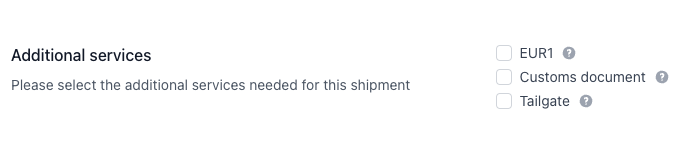
When a service is created, edited or rearranged, it will immediately be updated for companies requesting quotes. These services will be displayed under the “Additional services” section on the request a quote page.
Creating a service
- Navigate to the admin panel
- Navigate to
Application management > Services - Click
Create Servicelocated top-right of the table - Fill in the required fields
- Click
Create Service
Editing a service
- Navigate to the admin panel
- Navigate to
Application management > Services. - Select a service record
- Click the edit icon, located top-right of the page
- Click
Update Service
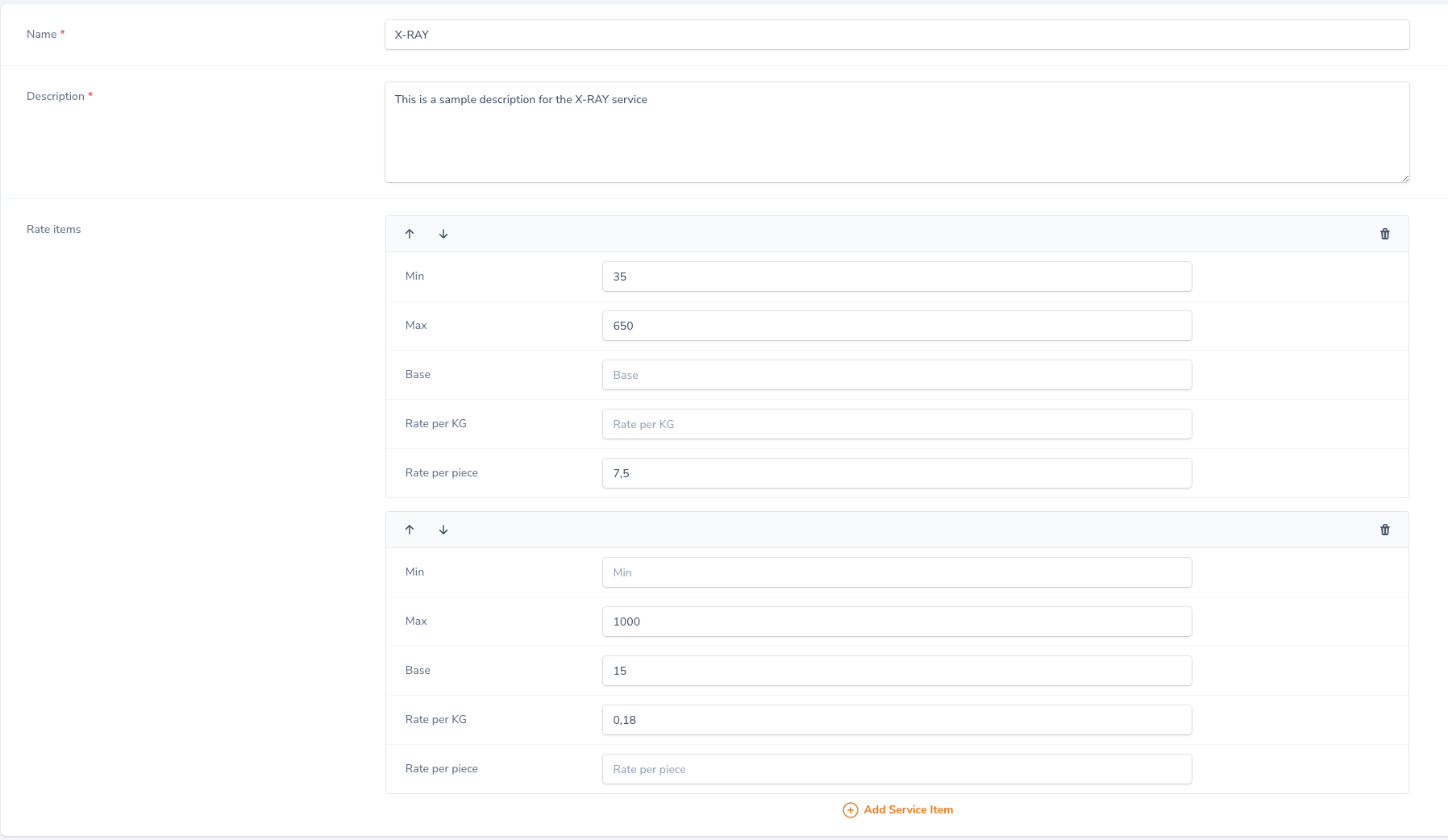
Service example
Name: X-RAYDescription: This is a sample description for the X-RAY service
Rate item 1:Min: 35Max: 650Rate per piece: 7,5
Rate item 2:Max: 1000Base: 15Rate per KG: 0,18